How to test your contact form (a 10-minute checklist before launch)
A broken contact form fails silently. Use this 10-minute checklist to test delivery, spam filtering, replies, mobile usability, accessibility and edge cases before and after every launch.
A broken contact form is the worst kind of bug: nothing crashes, nobody complains, and the enquiries simply stop. Sometimes for months.
Run this checklist before launch, after every redesign or hosting change, and once a month on important sites.
1. Delivery (3 minutes)
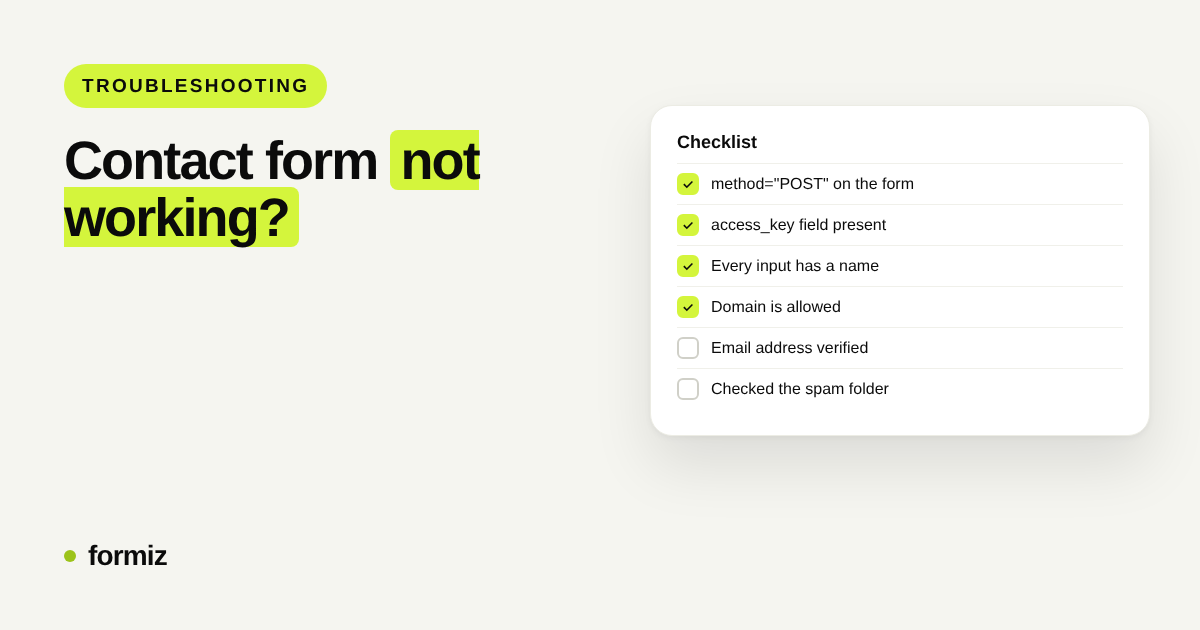
- Submit the form on the live site, not just localhost or staging.
- The notification email arrives within a minute.
- It is in the inbox, not spam or promotions. If not, read why form emails go to spam.
- Every field appears with a readable label (field
nameattributes likename,email,message, notfield_2). - The subject line tells you which site and form it came from.
- Other channels (Telegram, team group) receive it too, if configured.
- The submission appears in your dashboard or inbox.
2. Replying (1 minute)
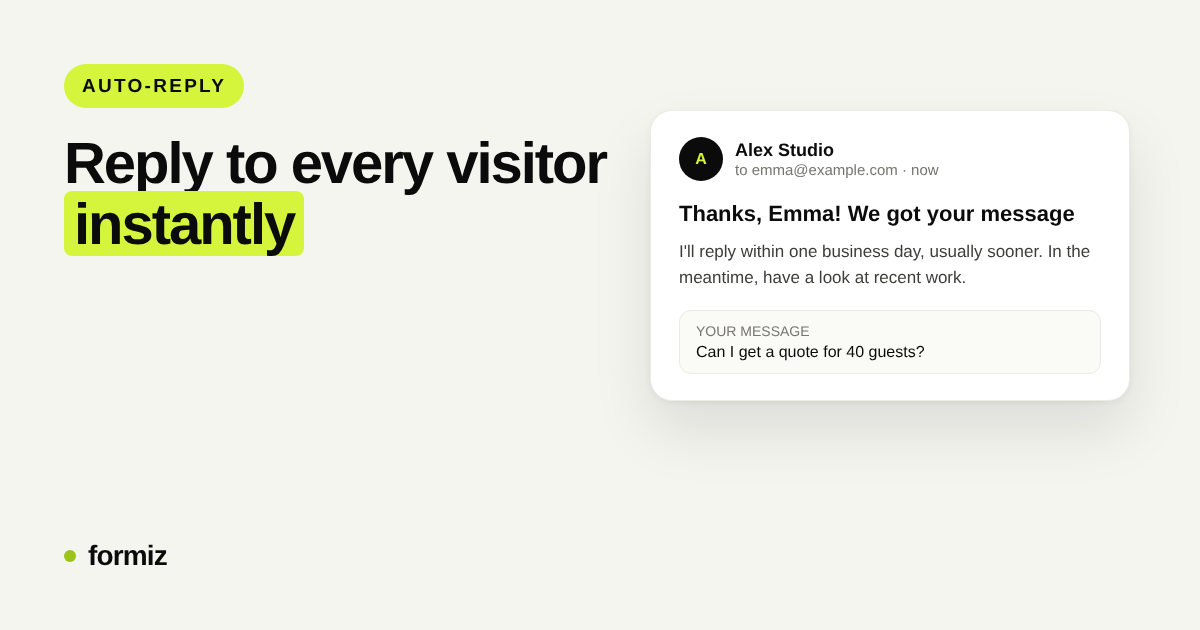
- Press Reply on the notification. The "To" address should be the email you entered in the form, not a no-reply address.
- Send the reply and check it arrives.
3. The visitor's experience (2 minutes)
- After submitting, there is a clear success message or thank-you page.
- It says what happens next and when.
- Pressing the browser's back button does not resubmit the form.
- With JavaScript submissions, the button shows a sending state and cannot be double-clicked.
See thank-you pages, redirects and inline messages.
4. Validation and edge cases (2 minutes)
- Submitting empty shows clear messages for required fields.
- An invalid email ("name@") is caught.
- A long message (a few paragraphs) arrives intact.
- Non-English characters and emoji arrive correctly (Ğ, ü, 日本, 🎉).
- Line breaks in the message are preserved.
5. Mobile (1 minute)
- Fields are large enough to tap, and the right keyboard appears for email and phone.
- Nothing is hidden behind the on-screen keyboard or a cookie banner.
- Autofill works for name, email and phone.
6. Accessibility (1 minute)
- Complete the form with the keyboard only (Tab, Space, Enter).
- Every field has a visible label.
- Errors are shown as text, not just a red border.
More in how to build an accessible contact form.
7. Spam protection
- A honeypot field exists and is invisible to people and screen readers.
- Your access key or endpoint is restricted to your domain.
- Submitting the form several times quickly is throttled.
Formiz silently discards honeypot hits and rate-limits bursts, so to test the honeypot, temporarily make it visible, tick it, submit, and confirm nothing arrives.
8. Ongoing monitoring
Forms can break later: a new plugin, a theme update, a changed domain, a full mailbox. Two cheap safeguards:
- Watch the numbers. If a site that usually gets a few enquiries a week goes quiet for two weeks, test it.
- Use a second channel. Even if email delivery hiccups, a Telegram notification and a stored submission mean nothing is lost.
Printable version
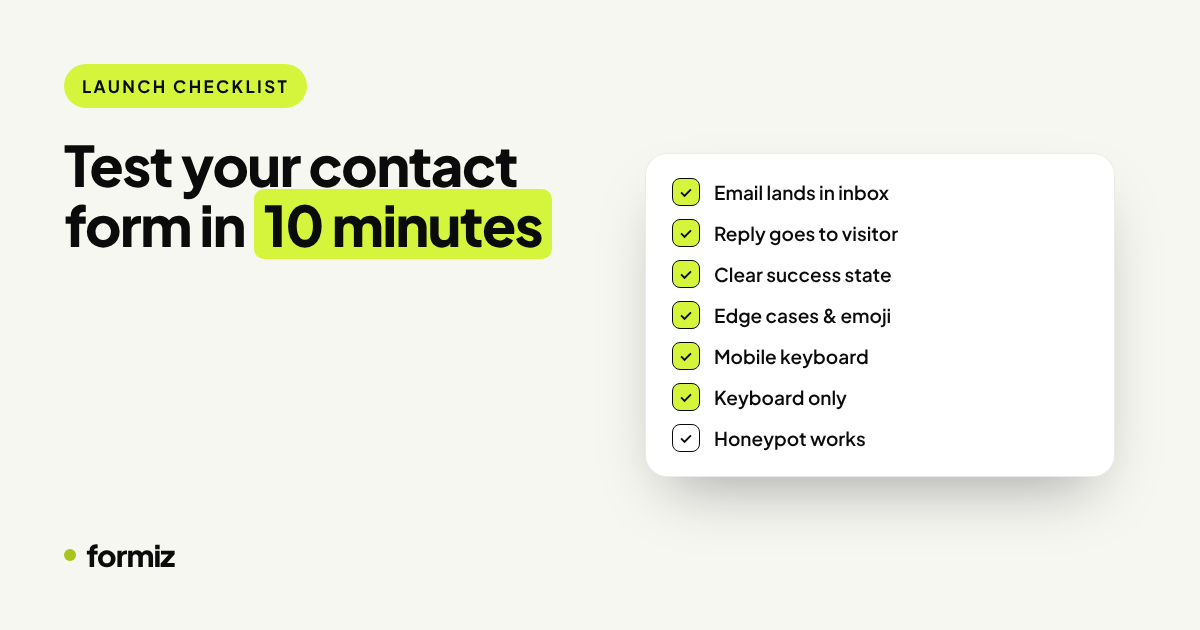
- Live submit → email in inbox within a minute
- All fields labelled, subject identifies the form
- Reply goes to the visitor
- Clear success state; no double submit
- Empty, invalid, long, emoji and multiline inputs
- Mobile keyboard and autofill
- Keyboard-only completion, visible labels
- Honeypot, domain restriction, rate limit
- Monthly glance at submission volume
Ten minutes now saves a client calling to ask why nobody has contacted them since spring.
Get your form working in five minutes
Create a free Formiz key, add it to your form and receive submissions by email and Telegram. No server, no SMTP, no card.